
Contact Form Submission Fails After Update: Causes Often Overlooked and Basic Troubleshooting Steps
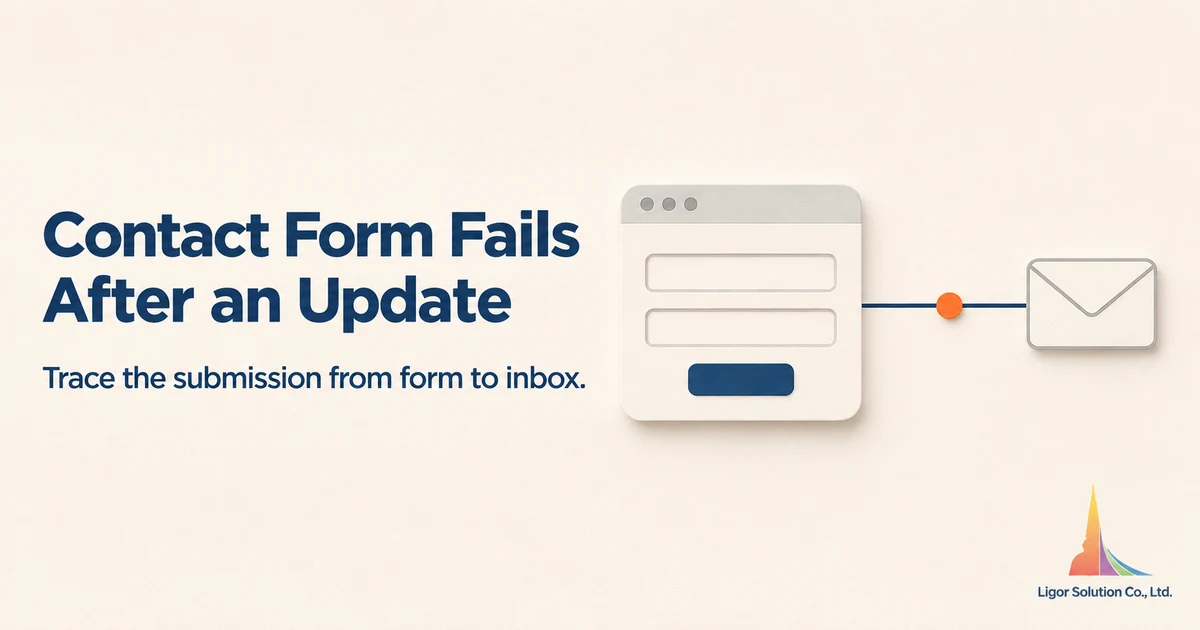
The development team just hit 'Deploy', the website looks brand new, but when customers try to fill out the contact form, it goes silent immediately—no notifications or clear error messages appear.
Why Contact Form Submission Fails Again After an Update
Contact form submission failures are rarely caused by a complete code collapse; they usually stem from the gap between 'normal operation' and 'post-change state'.
The team may assume the update is complete because there are no clear Error Logs visible on the Front-end that customers see. In reality, the issue might be hidden in the Back-end, such as notification Webhook settings, changed database access permissions, or unstable email sending API connections.
When developers work on a Local Environment and deploy to Production without testing the entire flow, the system may appear normal to the team but fail immediately when real customer traffic arrives.
System-Level Causes and Often Overlooked Points
The primary cause is often 'incomplete testing of real-world scenarios'.
Developers might test basic data entry and successful submission, forgetting to check cases like: data exceeding limits, receiver-side internet connection failures, or Firewall settings blocking requests from specific IPs.
Additionally, updating the database structure without a safe Migration can alter the form data table's schema, preventing the system from inserting information.
Another cause is neglecting to check Server Logs after deployment.
The team may think everything is fine but forget to verify if requests are reaching other services, such as email systems or CRMs, or if timeouts occur during processing.
Recommended Solutions and Architecture
The solution isn't just 'resetting the system' but creating a 'post-update verification cycle'.
Before deploying, perform Sanity Checks for all forms: test real-time data submission, verify that Email Notifications are sent, and check Server Logs for specific Error Codes.
After updating, enable Real-time Monitoring to observe incoming requests and system response states.
If issues are found, review the Order of Operations: start from Database Connection -> Backend Logic -> Front-end Submission -> Third-party Integration.
Using tools to log every step will help the team identify exactly where the failure occurs and fix it precisely.
Basic Troubleshooting Checklist for Teams
- [ ] Test forms with real data (not Dummy Data) while checking Email Notifications
- [ ] Check Server Logs for Errors or Timeouts following the update
- [ ] Verify Webhook and API Key settings are still functional after deployment
- [ ] Test data submission under abnormal conditions, such as overly long data or receiver-side lack of internet
- [ ] Enable Monitoring mode post-update to observe system behavior continuously for 24 hours